 Animated Elements
Getting started with Animated Elements
Install the app, drop the Animated Elements widget onto a page, pick an element from the gallery, then customize it. The whole thing takes about three minutes, and you never leave the page builder.
From install to a customized element
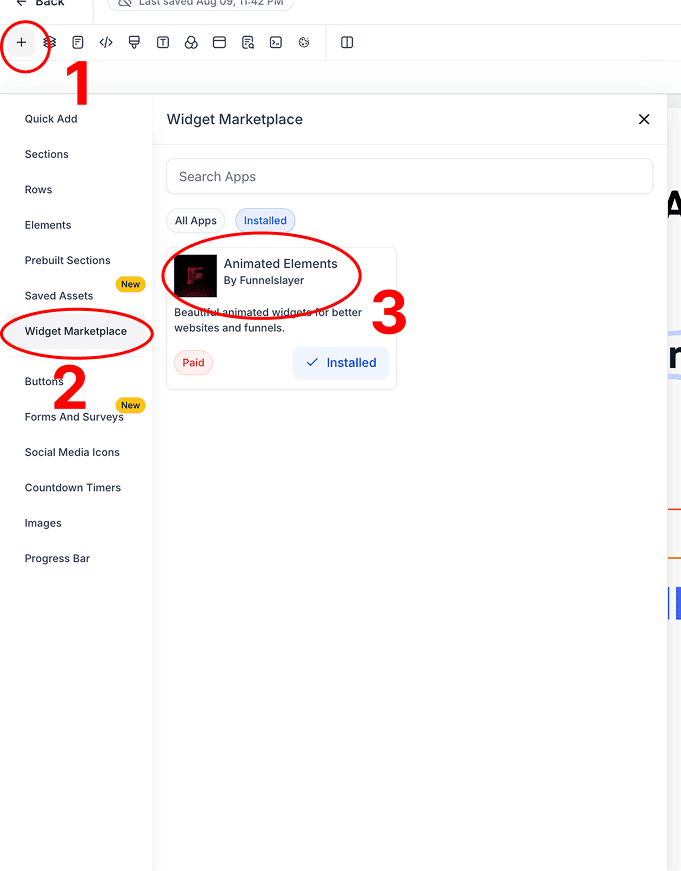
- 01
Open the element panel
In the page builder, click the + button to add a new element.
- 02
Go to Widget Marketplace
In the left menu, select Widget Marketplace.
- 03
Find Animated Elements
Locate the Animated Elements widget by Funnelslayer in the installed apps list.
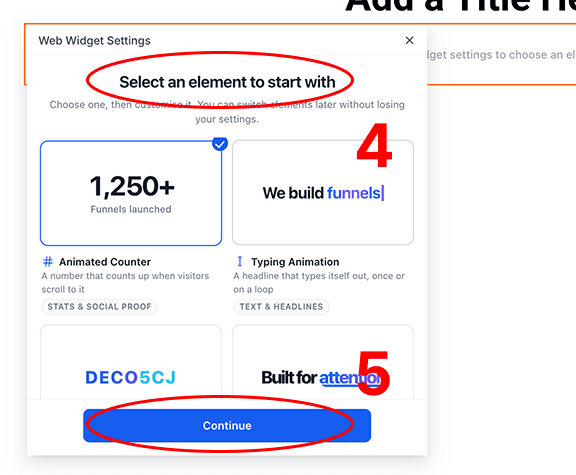
- 04
Drag and drop it into the page
Drop the widget where you want it. The Web Widget Settings modal opens on the element gallery: "Select an element to start with".
- 05
Select an element and continue
Choose an element (Animated Counter, Typing Animation, and more), then click Continue. Search by name or by what it does, or use the category rail on the left to narrow the list. You can switch elements later without losing your settings.
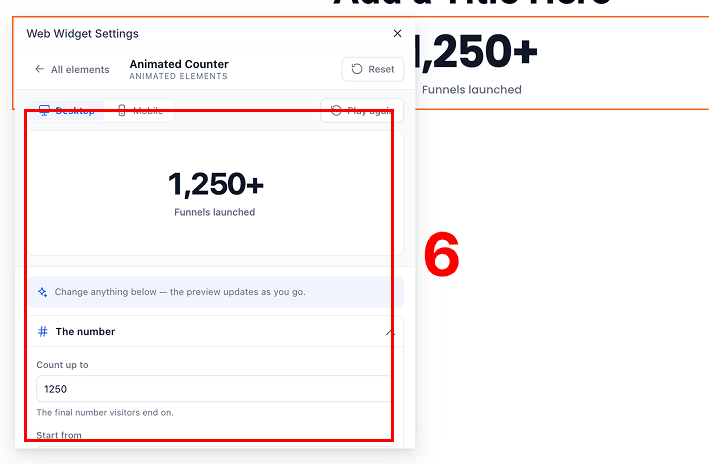
- 06
Customize it
Use the element's settings to customize everything to match your brand. The live preview updates as you go, with separate desktop and mobile views.
Learn the category you need
Buttons & CTAs
How to use them, and every variant running live.
Text & Headlines
How to use them, and every variant running live.
Section Backgrounds
How to use them, and every variant running live.
Images
How to use them, and every variant running live.
Stats & Social Proof
How to use them, and every variant running live.
Cards & Content
How to use them, and every variant running live.
Testimonials
How to use them, and every variant running live.
FAQs
How to use them, and every variant running live.
Stuck on something? Get support.