 Animated Elements
Animated elements that make a page feel built.
36 elements that drop straight into the page builder. Counters, headlines, buttons and section backgrounds, with 2369+ controls across the library and no code to write.
- No code required
- No CDN or external dependencies
- Separate desktop and mobile control
- Works on any funnel or website page
The builder gives you static pages. Buyers respond to motion.
Most funnel pages look like the template they came from. The copy might be right and the offer might be right, but the page reads as generic, and generic costs you conversions on traffic you already paid for. Animated Elements gives you the motion layer the builder does not ship: counters that prove the number, headlines that hold attention, buttons that ask to be clicked, and backgrounds that make a hero feel built rather than assembled.
Nothing to load
Every element emits plain scoped HTML, CSS and JavaScript. No CDN call, no font download, no framework. An element adds no network requests to your page.
Mobile is set, not scaled
Sizes, spacing and motion have their own mobile controls, with a mobile view in the builder preview. Your headline does not turn into four lines on a phone.
Built in the builder
Drop the widget, pick an element, and configure it with normal controls. No custom code block, no embed, and you can switch elements later without losing settings.
36 elements, 2369 controls.
Every one runs on plain scoped HTML, CSS and JavaScript with nothing loaded from anywhere else.
Buttons & CTAs
How to use them, and every variant running live.
7 elementsText & Headlines
How to use them, and every variant running live.
5 elementsSection Backgrounds
How to use them, and every variant running live.
5 elementsImages
How to use them, and every variant running live.
4 elementsStats & Social Proof
How to use them, and every variant running live.
4 elementsCards & Content
How to use them, and every variant running live.
2 elementsTestimonials
How to use them, and every variant running live.
1 elementFAQs
How to use them, and every variant running live.
From install to a customized element in about three minutes.
Install the app, drop the Animated Elements widget onto a page, pick an element from the gallery, then customize it. You never leave the page builder.
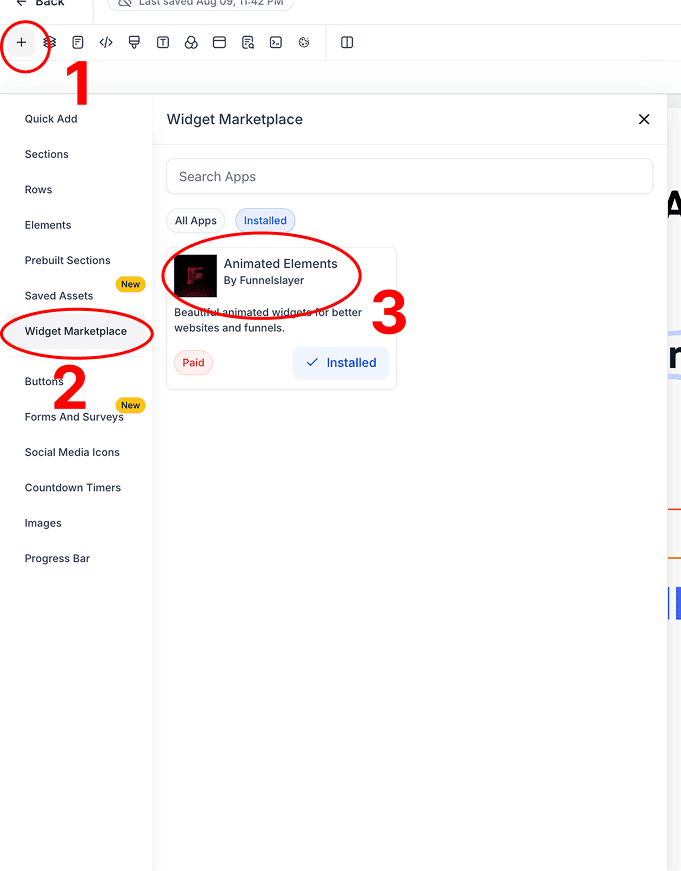
- 01
Open the element panel
In the page builder, click the + button to add a new element.
- 02
Go to Widget Marketplace
In the left menu, select Widget Marketplace.
- 03
Find Animated Elements
Locate the Animated Elements widget by Funnelslayer in the installed apps list.
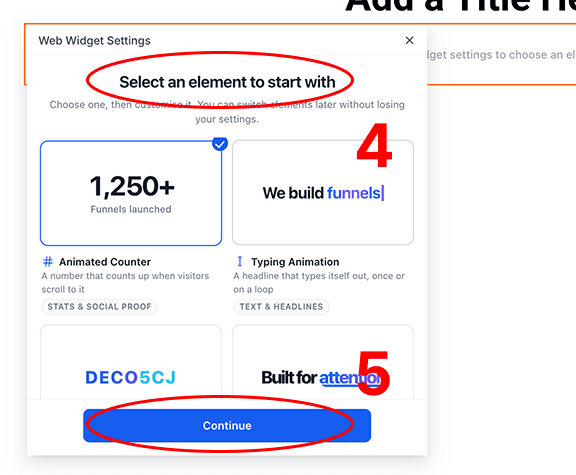
- 04
Drag and drop it into the page
Drop the widget where you want it. The Web Widget Settings modal opens on the element gallery: "Select an element to start with".
- 05
Select an element and continue
Choose an element (Animated Counter, Typing Animation, and more), then click Continue. Search by name or by what it does, or use the category rail on the left to narrow the list. You can switch elements later without losing your settings.
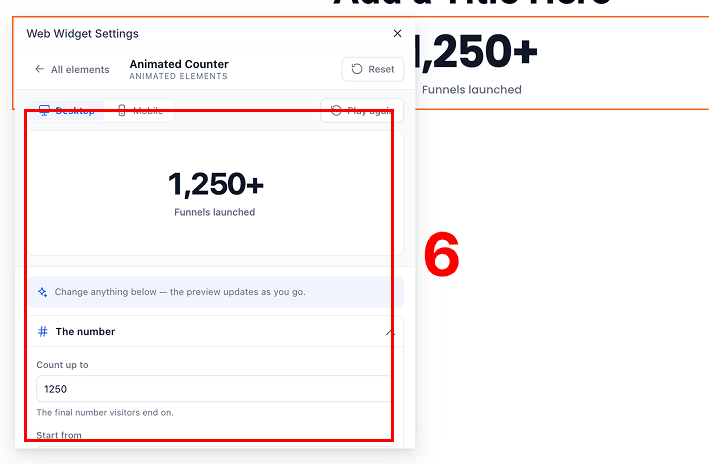
- 06
Customize it
Use the element's settings to customize everything to match your brand. The live preview updates as you go, with separate desktop and mobile views.
What people ask before installing.
- What is Animated Elements?
- It is a widget you install once from the marketplace. Inside it sits a library of animated elements: counters, typing headlines, scramble text, rotating words, hand-drawn highlighters, 3D type, magnetic and spotlight buttons, and animated section backgrounds. Drop the widget on a page, pick an element, and customize it in the builder.
- Do I need to write code?
- No. Every element is configured from the builder with normal controls: text, colours, timing, easing, spacing, and separate desktop and mobile sizing. Nothing requires a custom code block or an embed.
- Will it slow my funnel down?
- Each element emits plain scoped HTML, CSS and JavaScript with no external dependencies. There is no CDN call, no font download, and no framework to load, so an element adds no network requests to your page.
- Does it work on mobile?
- Yes, and mobile is configured separately rather than inherited. Sizes, spacing and motion have their own mobile controls, and the builder preview has a mobile view so you can check both before publishing.
- Where can I use these elements?
- Anywhere the page builder runs: funnel steps, websites, landing pages, order forms and upsell pages. The section background element also targets a section, row, column, or any class you name.
- Can agencies install it across sub-accounts?
- Yes. The app supports agency bulk install, so you can roll it out across sub-accounts instead of installing it one client at a time.
Everything the app does, written down.
Installing, triggers, mobile settings, animating a button you already built, section targeting and troubleshooting.
Basics
Building
Triggers and when animations run
The difference between scroll, load, hover and click triggers, and when to replay.
Desktop and mobile settings
Mobile is configured separately, not scaled. How to set it and what to check before publishing.
Animating a button you already built
Attach mode adds motion to a native builder button while keeping its actions, including one-click upsells.
How section backgrounds target a section
Why the background element paints its parent section, and how to point it at the right container.
Make every page feel built, not assembled.
36 elements, one widget, and nothing to load. Install it once and it is in every page you build after that.